Create a Windows 7 or later version install disk missing on El Capitan
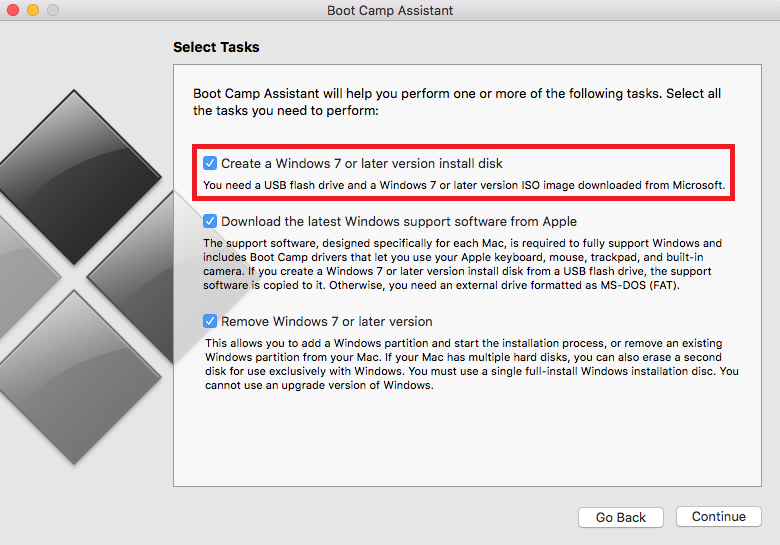
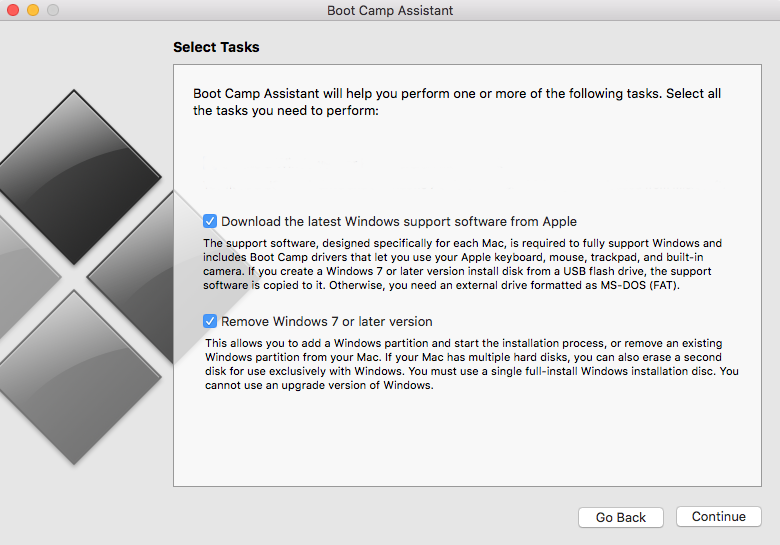
I first noticed “Create a Windows 7 or later version install disk” was missing from Boot Camp Assistant after installing El Capitan. So how to we solve this you ask? Read through the rest of the article to find out.
Prerequisites:
1. Xcode (can be downloaded and installed from App Store)
2. Free time!
Let’s begin:
1
Open Terminal and copy Info.plist file of Boot Camp on your Desktop using below command:
$ cp /Applications/Utilities/Boot\ Camp\ Assistant.app/Contents/Info.plist Desktop/
2
Right click on the new file Info.plist found on the Desktop and select Open with -> Xcode.
Add new item in section DARequiredROMVersions. The new item value can be found by typing “System Information” in the Spotlight Search (Command + Space).
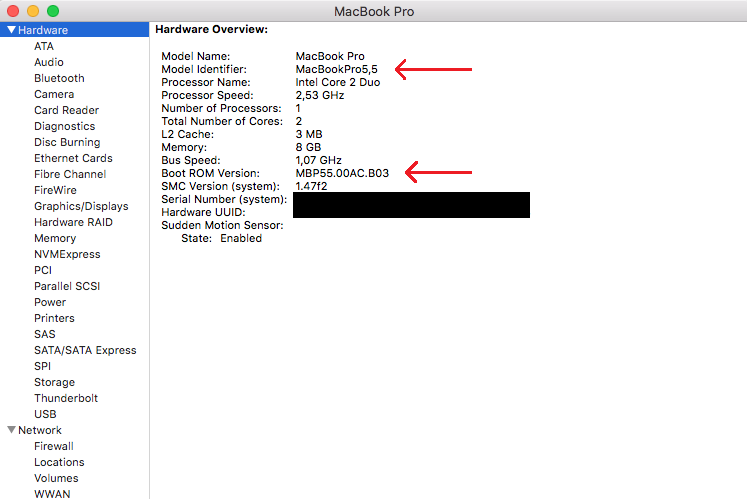
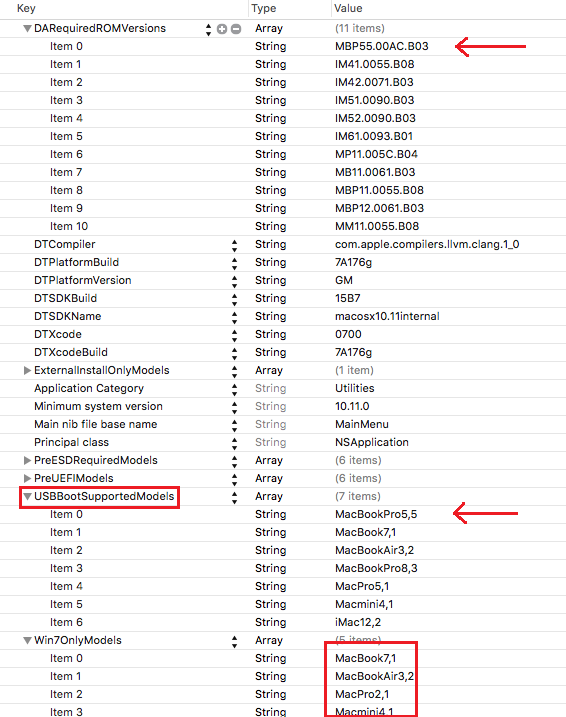
Add new item in Section PreUSBBootSupportedModels. The new item value can also be found in System Information.
Then edit PreUSBBootSupportedModels and delete the “Pre” to make it become USBBootSupportedModels.
If your MacBook model exists in section Win7OnlyModels, make sure to remove it from there.
Then Save and Exit Xcode.
Final file will look like this:
Change the ownership of the new file to match the original:
$ sudo chown root:wheel Desktop/Info.plist
Above command will ask you to enter the administrator password so make sure you have that.
3
Reboot in Recovery Mode by having pressed the Command + R buttons while the MacBook starts.
Navigate to Utilities and then Terminal.
Enter below command which will cause to disable System Integrity Protection (SIP) and restart the MacBook:
$ csrutil disable ; reboot
Disabling SIP will allow us to replace the original Info.plist with the modified one.
4
Once booted back to normal mode, use below command in Terminal to replace the old Info.plist with the modified one.
$ sudo mv Desktop/Info.plist /Applications/Utilities/Boot\ Camp\ Assistant.app/Contents/
5
Reboot the machine back in Recovery Mode using Command + R keys while booting and enable back the SPI using this command:
$ csrutil enable ; reboot
All finished! Once Boot Camp Assistant launches again, the option “Create a Windows 7 or later version install disk” will appear.
Millions of thanks for this well-written description. I have only one additional query: My interest is in iMac 12,1 and wanted to know how I can disable built-in optical drive in the booting process and force iMac to read/boot from USB.
Many thanks
You can press Option key while booting and it will let you choose the drive you want to start.
In case you want a permanent solution, boot in Windows, right click on the Boot Camp icon in lower right corner and go into options where you can set the “primary” drive.
I couldn’t change the file after changing ownership; thus changed file, placed in folder, then changed ownership back to wheel/root
Thanks for the feedback! Instructions have been updated accordingly.
change mv Desktop/Info.plist /Applications/Utilities/Boot\ Camp\ Assistant.app/Contents/ to
sudo mv Desktop/Info.plist /Applications/Utilities/Boot\ Camp\ Assistant.app/Contents/
when i enter this command it asks me to override
is that a yes or no? and how you enter that?
thank you
it says : operation not permitted
says: operation not permitted
return message “operation not permitted” after Y to override
dont tybe $ in terminal
I did all the above and still it is not working!! I still can’t see the option “Create a Windows 7 or later version install disk”.
I figured it out. I missed this step “Then edit PreUSBBootSupportedModels and delete the “Pre” to make it become USBBootSupportedModels.” I did and it works now.
Does this only allow the 64-bit version of Win10 to be installed? It’s not letting me use the 32-bit ISO … but supposedly my MBP won’t support the 64-bit version. Guess I’ll find out!
Try using another image of windows
I tried Win10 64-bit, Win10 32-bit, and Win8.1 32-bit. No luck, it tells me I can only install Win7. I don’t see my MBP in the list of Win7OnlyModels either. Ugh.
What is your model?
You should remember that models in string tags are read by bootcamp as “up until x”, so in my case removing pre in PreUSBBootSupportedModels somehow didn’t work, but changing MacBookPro8,3 to MacBookPro7 in there worked. So if in in Win7OnlyModels there is a string like MacBookPro5,5 and your model is MacBookPro5,1 then your model IS in the list and you should fix a string MacBookPro5,5 to MacBookPro5 or MacBookPro4 and so on.
Hello,
I don’t see DArequiredROMversion in my XCODE 7.1.3 LIST. How to find it? Or can we add this with all its items?
if you modify the list of “Win7OnlyModels” in info.plist file, you can install other OS than Win7.
All goes OK until I get to part where moving the Info.plist file is required. Am getting an “override root/wheel” message that requires a Y/N confirmation
Do I take Y or N?
Badly need to get Win 7 onto this new iMac for work purposes and am wasting a lot of time on this so any help greatly appreciated
Go on and replace it. Remember that System Integrity Protection (SIP) needs to be disabled in order to be able to do that.
GREAT INSTRUCTIONS! Thanks. Followed them all, everything went well. Boot Camp Assistant showed the new option to create Windows 7 or later install disk. Selected the option to create install USB, and the option to install Windows on a separate drive. BCA created the USB install disk, and then proceeded to install. The destination disk was renamed Bootcamp, and then it seemed to boot to the USB install disk. At that point I got a black DOS type screen saying there was no boot disk available, please insert boot disk and press any key. No joy after that. This is a MacPro3,1 running El Capitan 10.11.2. I am attempting to install Win10_1511_English_x64.
Hey I know its been a wile since you posted since but got the exact same problem. How did you fixed this? Thanks a lot! Macpro 1.1 x64
Currently running El Capitan on a mid 2010 Macbook Pro 13 in (MacbookPro7,1). When I follow these directions I only have the options “Create a Windows 7 install disk”, “Download latest windows support…”, and “Remove windows 7”, thus I am unable to load the Windows 10 64bit ISO I had downloaded onto a USB using BCA. Any suggestions on changing my options to windows 7 or later? Thanks!
I also have a mid 2010 model and have the same problem. Have you found a solution?
Bump… This doesn’t quite do the job for MacBookPro7,1 unfortunately.
You need to add your model identifier, at this case, you need to add “MacbookPro7,1” on PreESDRequiredModels, PreUEFIModels, and USBBootSupportedModels. And do not forget to delete the “Win7OnlyModels” section. Hope this helped. ^^d
felt like I achieved something today! thankyou very much!
Thank you so much bro.. Enable now!!
Did all the above. checked twice. Still, bootcamp wants the windows cd. it does not want to proceed to partitioning the hd before having a cd inserted into the drive which does not exist any more because I swapped it for a bigger HD.
Hey there, did you find any solutiion for this? Smae prob here. Thx a lot!
I have been trying to install WIN7 on my iMac12,1 using USB installation for the past 6 months with no luck. I followed the instruction posted on this site but when I try to change the ownership of Info.plist (save on desktop) I get this error on Terminal:-bash: $: command not found. What wrong did I do? Grateful for any guidance
I have been trying to install WIN7 on my iMac12,1 using USB installation for the past 6 months with no luck. I followed the instruction posted on this site but when I try to change the ownership of Info.plist (save on desktop) I get this error on Terminal:-bash: $: command not found. What wrong did I do? Grateful for any guidance.
iMac12,1 on OS X EI CAPITAN
Start writing the command from sudo
Stuck on step one cannot get the copy command in terminals to work.
Nvm i got thanks
Hi,
Does this still work ? I have a MacBook Pro (Retina, 15-inch, Mid 2015), and the instructions did not work. The thing is, that I copied bootcamp to another location and modified plist there. Does it needs to be the exact one in utilities, or can I do this on a “copied” application.
Regards,
Adrian
I still get the message “not overwritten” in terminal while changing the info.plist. How do I type the answer to (y/n [n])?
Thanks saved my life i was finding strange that having the latest version of bootcamp 6.0.1 was getting less options than the bootcamp 5.1.3 on yosemite and with more options i tried searched for that version of the app but it was the configure file in the end i did the changes and managed to create a usb boot disk for windows 10 on a mac pro 2,1.
thanks
I am doing step 4, but it occur error command not found.
You’re probably copy and paste the command … You should copy/write without the $ sign, starting from sudo
Excelente, funciono de inmediato 🙂
It did not work on Mac Pro 6,1 🙁 Still cannot see the windows 7 screen and when trying to install the 64 bit windows 7 professional ISO file it tells me that requires Windows 8 or up.
It worked for me !! Thank you very much! You’re the best!
Hi there,
Thanks for this great instruction.
Followed it but stuck on copying the file from desktop to boot camp contents
“sudo mv Desktop/Info.plist /Applications/Utilities/Boot\ Camp\ Assistant.app/Contents/
override rw-r–r– root/wheel for /Applications/Utilities/Boot Camp Assistant.app/Contents/Info.plist? (y/n [n]) Y
mv: rename Desktop/Info.plist to /Applications/Utilities/Boot Camp Assistant.app/Contents/Info.plist: Operation not permitted”
Any idea of what I did wrong??
Did you disable System Integrity Protection (SIP) and restarted?
hi sir i create win 7 usb with bootcamp but it not show error no bootable device found also not show after after press alt and not show dvd
Hi,
I have followed the instructions but when attempting to install Windows 10 for the first time I receive the message :-
“Boot Camp only supports 64-bit Windows 8 or later installation on this platform. Please use an ISO file for 64-bit Windows 8 or later installation.”
Thanks,
Nick.
Hello, thanks for the great instructions.
I have followed all the steps exactly.
-Copying the plist file to my desktop worked fine
-Editing the plist file in Xcode worked fine
However, on the next step, changing the ownership of the plist file, Terminal gives me the message “No such file or directory”.
I can see the plist file sitting on my desktop, and I have not renamed it, so how can this be? What am I doing wrong?
Forgot to mention: MacBookPro6,1 ; OSX 10.11.5
Works fine! Thanks! Of course demands some extra time, but…
Very minor tweak: When typing the chown and mv commands, start path with ~/Desktop as opposed to just /Desktop.
Thanks for the clear explanation. Wet selecting the Windows 7 .iso file during the next bootcamp steps I got the message that the bootable usb can not be made because Bootcamp only supports on Windows version7 or higher..
Thank you SO much! I spent hours trying to get Windows 10 on my system using other approaches and this was the only one that worked.
Thank you for the clear and concise instructions. This was driving me mad because I started with a fresh install of El Capitan after replacing my old MacMini 2010 drive with an SSD. My previous OS was El Capitan, but it was upgraded through the years and I had a working BootCamp Win7 Pro installation.
And I learned some tricks! Thanks again.
Have done this all on an iMac17,1 and still cannot get the option to do anything other than choose an iso image.
Thank you for the great tips.
Followed all instructions to the letter. Everything worked fine but El Cap Boot Camp on a new Air says it will only accept Windows 8 or later. Bummer. Any thoughts?
Thank you so much! I was trying to install windows 7 for 2 weeks and I finally got it
Thank you soooooooooooooo much, finally i van play PC games!
A simpler solution is to simply copy Boot Camp Assistant from /Applications/Utilities to your Desktop. You can edit Info.plist without disabling SIP and you will automatically have read/write. Just run the version from your Desktop.
hi, in the info.plist, i don’t have the section DARequiredROMVersions. what should i do?
thank you in advance
Same problem here.
I quit, i have been at this for 6 hours straight and have done this multiple times but it still does not work. I want to die
Running win 7 successfully done.
Macbook Pro 5,1 has being Macbook Pro 5 on Xcode after open the newly info.plst which using terminal app to enter command.
Better make surely read the whole article including these comments above it.
Don’t give up .
Thanks the Blogger !!
I copied and pasted the line of code from step 2 into terminal and says command not found
I got the same message.
$ cp /Applications/Utilities/Boot\ Camp\ Assistant.app/Contents/Info.plist Desktop/
-bash: $: command not found
Why does my info.plist look completely different than this one. I see none of these sections
Successfully installed Windows 7 Pro x64 with Boot Camp.
Boot with USB.
MacBook Pro 5,1 – OS X 10.11.6
A BIG thank you for the instructions!!!!
You save my day!!!
Follow these steps also if is not showing you the create a windows 7 or later version install disk
1. Add the Model Identifier to the PreESDRequiredModels and PreUEFIModels sections
2.Remove the entire Win7OnlyModels section
3.#profit.
it still doesn’t work for me can someone give me his discord id and help me from there?
MacBook Pro 17″ late 2007 Model 3,1 Windows 64-bit Boot Camp install on unsupported mac.
Posts do not say whether installing 32-bit or 64-bit Windows and version, so not sure which posts might apply. It looks like though there are 64-bit drivers for many of the models I did see posted.
However, I am looking for a process to obtain 64-bit drivers for MacBook Pro 17″ Model 3,1 to install Windows 10 64-bit using boot camp. Apple does not provide 64-bit drivers for this model even though the EFI is 64-bit. Where can I get the drivers and how do I incorporate them on Windows 10 ISO downloaded from MS?
Apple said there is no way to get this Mac to boot from USB because it has an op[tical drive and the firmware looks for an optical drive to do install. Is there a modification to the Boot Camp info.plist to boot from the USB 2.o port?
Hi,
With all the changes in as per the guide, after restart upon launching the Boot Camp Assistant, it crashes, I tried to revert all the changes back to original and reboot, but still Boot Camp Assistant crashes, please advice what went wrong.
mine is mac mini early 2009.
thanks in advance
May be this does not work in latest Bootcamp 6.1.0? I could not get it working 🙁
Didn’t work for me with Bootcamp 6.1.0